Keypad
The Keypad page is used by Passive Customers who only need to enter codes/tokens to activate or reactivate their devices (e.g. PAYG batteries or systems). It provides a simplified, focused interface — no complex menus or account management.
Access Model
- No account or login is required.
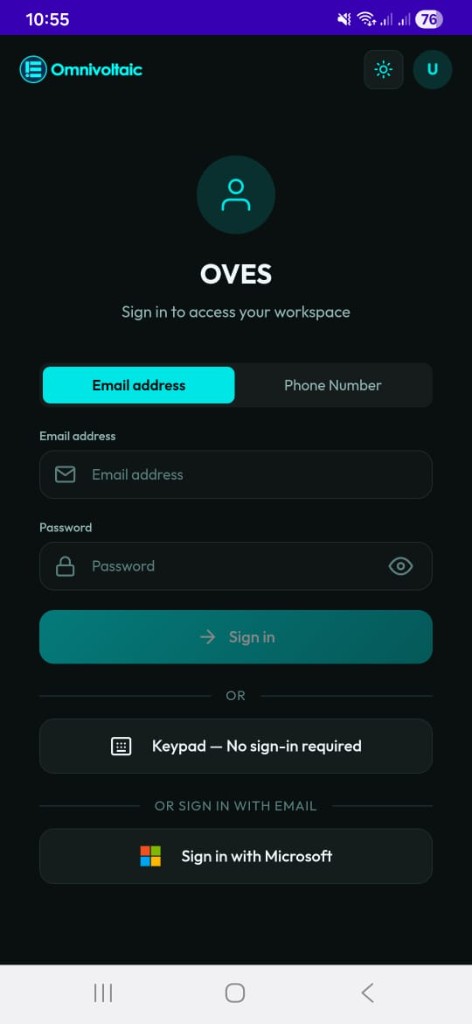
- From the OvApp login screen, tap Keypad — No sign-in required to enter the Keypad directly.
- The app opens into a simplified interface centered around:
- BLE connection to the customer's device.
- Keypad for entering activation codes/tokens.
This makes it accessible for passive customers who are not comfortable with complex menus.
How to Open the Keypad
On the login screen, tap the Keypad — No sign-in required button — no username or password needed.
Scanning & Connection
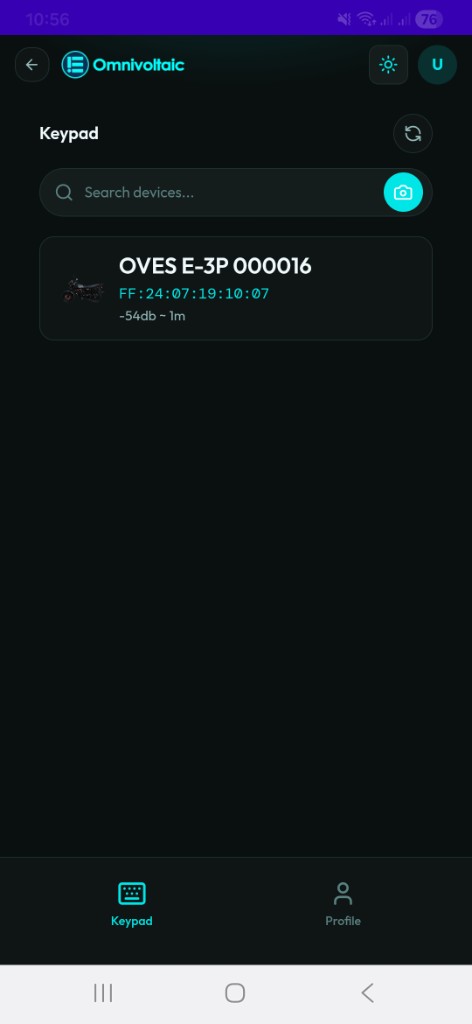
When you open the page, your phone uses Bluetooth to discover nearby OVES devices and displays them in a list.
Connecting to a Device
| Method | Description |
|---|---|
| Tap | Tap a device directly in the list to connect |
| Search | Type in the search bar to filter by device name |
| Camera / QR Scan | Tap the camera icon next to the search bar to scan the device's QR code and connect directly |
Once connected, you're taken to the keypad screen.
Keypad Screen
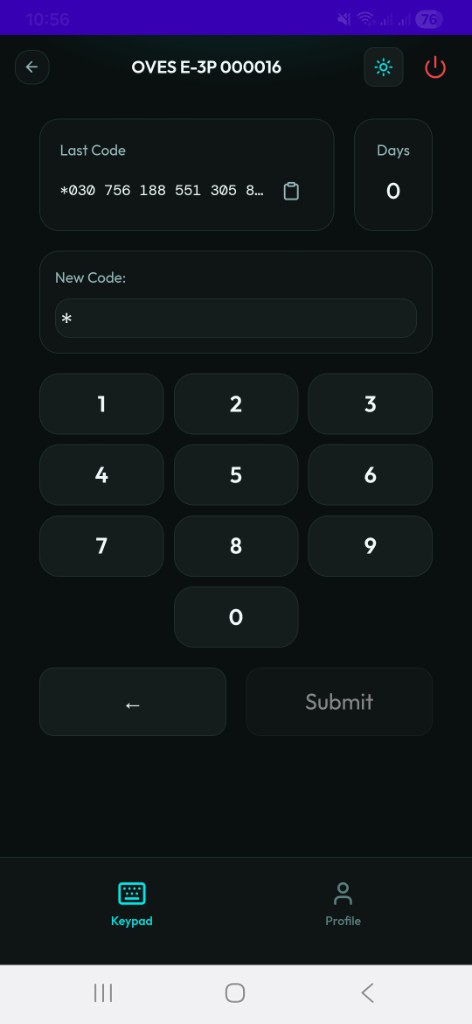
The keypad screen displays:
| Element | Description |
|---|---|
| Last Code | The most recent activation code entered on this device |
| Days Remaining | The number of days of service left on the device |
| Number Pad | On-screen keypad for entering the activation code |
Entering an Activation Code
- Ensure your device is connected via Bluetooth (see above).
- Enter a 21-digit activation code using the on-screen number pad, or paste it directly into the New Code input field.
- Press Submit — the app sends the code to the device over Bluetooth.
The Submit button is disabled until all 21 digits have been entered. A ← (backspace) button removes the last digit if you make a mistake.
Pasting a Code
You can paste an activation code into the New Code input field using your device's native long-press context menu (select Paste).
- Sentinels (
*and#) are automatically stripped — you can paste the full formatted code as-is. - Spaces are ignored, so codes copied from messages or documents paste cleanly.
- If the clipboard API is blocked by the device, a hint toast is shown. In that case use the on-screen numpad or long-press the input to use your device's native paste.
Note
A separate Paste button is no longer present. Paste via the input field's context menu or long-press instead.
If the Code is Accepted
- The device processes the code.
- The Last Code display updates to show the new code.
- The Days counter updates to reflect the extended usage time.
- A success toast confirms the activation.
If the Code Fails
- An error toast is displayed.
- Common causes include:
- Invalid or expired code
- Bluetooth disconnection during submission
- Code already used
Tip
If you repeatedly see errors, contact your local Agent or Distributor to verify the code and device ID.